How to Encrypt Email in Outlook in 2026: Microsoft 365, S/MIME, and Private Alternatives
Learn how to encrypt email in Outlook using Microsoft Purview Message Encryption, S/MIME certificates, Outlook on the web, and private email alternatives.
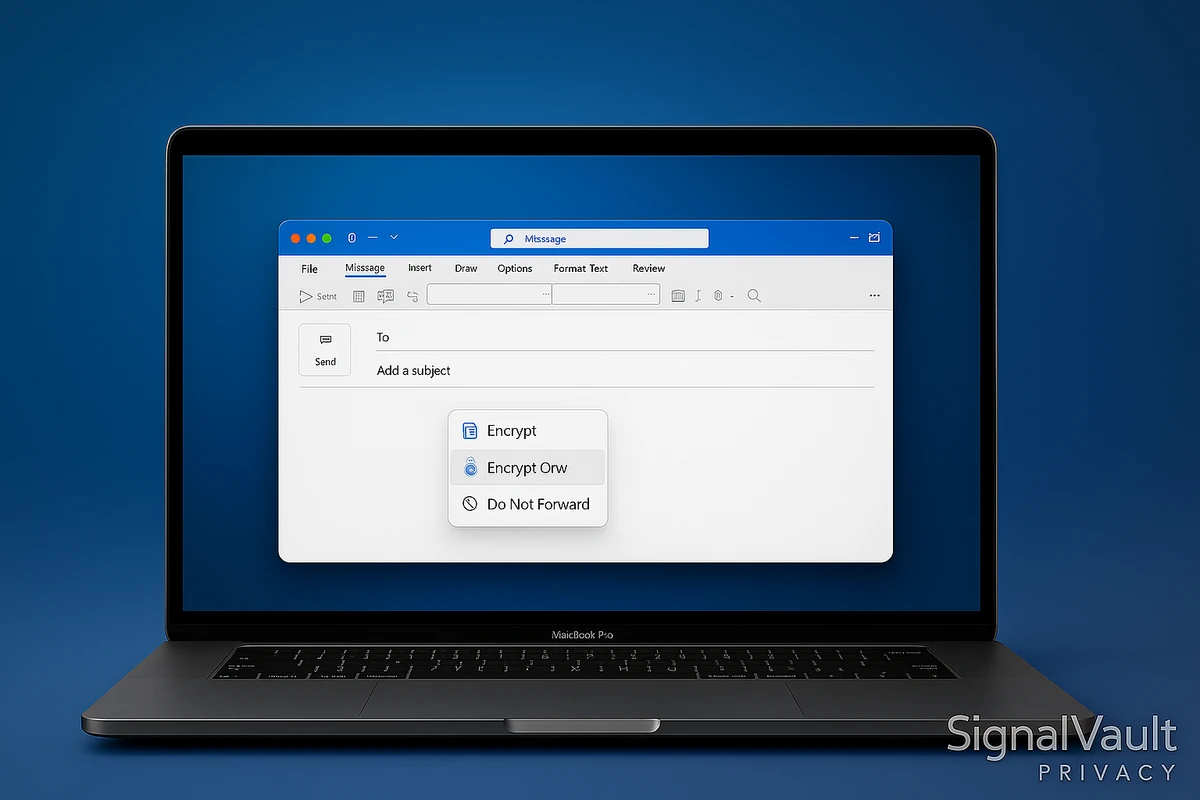
You can encrypt email in Outlook using Microsoft Purview Message Encryption, S/MIME certificates, or by switching sensitive messages to a secure email service like Proton Mail. Outlook encryption is best when you already live inside Microsoft 365. If your real goal is private email outside the Microsoft ecosystem, compare Proton Mail, Fastmail, and the best secure email providers before spending time on certificates.
This guide covers three methods: Microsoft Purview Message Encryption for Microsoft 365, S/MIME encryption for certificate-based email, and secure email services as an alternative. Each method has different setup requirements, recipient experience, and privacy tradeoffs.
Quick decision
Use Outlook encryption only when Microsoft 365 is the system of record.
Microsoft Purview Message Encryption works well for organizations that need Outlook, Exchange Online, compliance policies, and admin-managed rules. For personal privacy or a clean encrypted inbox, Proton Mail is usually simpler. For custom-domain productivity with less encryption friction, Fastmail is usually smoother.
Why Encrypt Email in Outlook
Email encryption protects your messages from being read by unauthorized parties. Standard email travels in plain text across the internet, meaning anyone intercepting the connection can read your messages. Encryption scrambles your email content so only the intended recipient can decrypt and read it.
Benefits of Email Encryption
Privacy Protection: Encrypted emails prevent ISPs, hackers, and government surveillance from reading your messages. Even if someone intercepts your email, they cannot decrypt it without the encryption key.
Compliance Requirements: Many industries require email encryption for sensitive data. Healthcare (HIPAA), finance (PCI-DSS), and legal communications often mandate encrypted email to protect client information.
Business Security: Encrypted email protects trade secrets, financial information, and confidential business communications from competitors and cybercriminals.
Personal Privacy: Encrypting personal emails protects sensitive information like passwords, financial details, and private conversations from being exposed in data breaches.
Outlook Encryption Limitations
Outlook’s built-in encryption has limitations:
- S/MIME requires certificates: Both sender and recipient need digital certificates installed
- Microsoft Purview Message Encryption: Requires eligible Microsoft 365 licensing and may send some recipients to a browser-based encrypted-message portal
- Not a private-email replacement: It protects message access, but it does not turn Outlook into a zero-access encrypted mailbox like Proton Mail
- Complex setup: S/MIME certificate installation and management can be technical
For maximum inbox privacy, consider switching sensitive communication to a secure email service that offers encryption-first account design. See our best secure email providers guide and Proton Mail review for recommendations.
Method 1: Microsoft Purview Message Encryption
Microsoft Purview Message Encryption is the most practical Outlook encryption path for many organizations because admins can apply encryption manually or through mail flow rules. Recipients inside Outlook often get a smoother experience, while recipients on other email clients may use an encrypted message portal.
When to Use Microsoft Purview Message Encryption
- Your organization already uses Microsoft 365.
- You need admin-managed encryption rules for sensitive keywords, recipients, or departments.
- Recipients may be outside your company, including Gmail, Yahoo, or other email services.
- You need a practical business control rather than a fully private personal inbox.
Send an Encrypted Outlook Email
- Compose a new message in Outlook or Outlook on the web.
- Open the message options and choose the encryption option available in your Microsoft 365 plan.
- Choose a policy such as standard encryption or “Do Not Forward” if your organization exposes that option.
- Send the message and confirm the recipient can open it.
- For teams, ask your Microsoft 365 admin whether mail flow rules should apply encryption automatically for sensitive content.
If your organization needs encryption but not Microsoft 365 lock-in, compare secure email for business before committing the whole team to Outlook-specific workflows.
Method 2: S/MIME Encryption in Outlook Desktop
S/MIME (Secure/Multipurpose Internet Mail Extensions) encrypts emails using digital certificates. Both you and your recipient need certificates installed for this to work.
Step 1: Obtain a Digital Certificate
You need a digital certificate from a certificate authority, internal IT team, or managed identity provider. Availability, verification requirements, and pricing change often, so do not buy a certificate from an outdated tutorial without checking the issuer’s current S/MIME support.
For testing: Use a current personal S/MIME option only after confirming it still supports your email client.
For business use: Let IT or your Microsoft 365 administrator choose the certificate and deployment method. S/MIME is rarely worth managing manually for a small team unless you have a compliance reason.
Step 2: Install the Certificate
- Download your certificate from the Certificate Authority
- Open Certificate Manager:
- Windows: Press
Win + R, typecertmgr.msc, press Enter - Mac: Open Keychain Access (Applications > Utilities)
- Windows: Press
- Import the certificate:
- Windows: Right-click “Personal” > “All Tasks” > “Import” > Select your certificate file
- Mac: Drag certificate file into Keychain Access
- Verify installation: The certificate should appear in your certificate store
Step 3: Configure Outlook for S/MIME
- Open Outlook and go to File > Options > Trust Center > Trust Center Settings
- Click “Email Security” in the left sidebar
- Check “Encrypt contents and attachments for outgoing messages”
- Check “Add digital signature to outgoing messages” (optional but recommended)
- Click “Settings” under “Digital IDs (Certificates)”
- Select your certificate from the dropdown
- Click “OK” to save settings
Step 4: Send Encrypted Email
- Compose a new email in Outlook
- Click “Options” tab in the ribbon
- Click “Encrypt” button (or “Sign” for digital signature)
- Enter recipient’s email address (they must have a certificate installed)
- Send the email
Note: The recipient must have their own S/MIME certificate installed. If they don’t have one, Outlook will warn you that the email cannot be encrypted.
Troubleshooting S/MIME Issues
Problem: “Cannot encrypt message” error Solution:
- Verify your certificate is installed correctly
- Check that the recipient has a certificate
- Ensure certificate hasn’t expired
Problem: Recipient can’t decrypt email Solution:
- Recipient needs to install your public certificate
- Recipient must have their own certificate installed
- Check certificate expiration dates
Problem: Certificate not showing in Outlook Solution:
- Re-import certificate to certificate store
- Restart Outlook
- Check certificate is in “Personal” certificate store
Method 3: Use a Secure Email Service Instead
If you are not required to stay in Outlook, a secure email service is usually easier than managing Outlook certificates. Proton Mail is the cleaner fit for privacy-first email. Fastmail is the cleaner fit for custom-domain productivity when default end-to-end encryption is not the main requirement.
The easiest way to encrypt personal email is using a secure email service that offers encryption-first account design. These services reduce certificate management and keep privacy decisions closer to the user.
Why Switch to Secure Email
End-to-End Encryption: Only you and the recipient can read emails. The service provider cannot decrypt messages.
Zero-Knowledge Architecture: The email service cannot access your encryption keys or read your messages, even if requested by law enforcement.
Easy Setup: No certificates or complex configuration. Encryption works automatically.
Better Privacy: Secure email providers are based in privacy-friendly jurisdictions and don’t scan emails for advertising.
Cross-Platform: Works on all devices with native apps and web interfaces.
Recommended Secure Email Services
Proton Mail (Best for Privacy)
Features:
- End-to-end encryption by default
- Zero-knowledge architecture (Swiss-based)
- Free account for testing private email
- Paid plans for custom domains, Bridge, and more storage
- Mobile apps for iOS and Android
- Open-source encryption
Best For: Privacy-conscious users, journalists, activists, anyone needing maximum email security.
Try Proton Mail → Start with the free plan to test the workflow, then compare paid plans if you need custom domains, Bridge, or more storage.
See our complete Proton Mail review for detailed analysis.
Fastmail (Best for Features)
Features:
- Strong encryption and privacy
- Excellent search and organization
- Custom domains included
- Calendar and contacts sync
- Paid plans for custom-domain and higher-storage workflows
- Based in Australia (privacy-friendly)
Best For: Users who want Gmail-like features with better privacy, business users needing custom domains.
Try Fastmail → Compare Fastmail if you want a smoother daily inbox with strong custom-domain workflow.
See our Fastmail vs Proton Mail comparison to choose between these services.
Tuta (Best Free Option)
Features:
- End-to-end encryption
- Free tier for testing encrypted email
- Paid plans for more storage, aliases, and custom-domain features
- German-based (strong privacy laws)
- Open-source
Best For: Users wanting free encrypted email with good privacy protection.
How Secure Email Services Work
- Sign up for a secure email service (Proton Mail, Fastmail, etc.)
- Create your account (takes 2 minutes)
- Start sending encrypted emails automatically
- Emails to other users of the same service are encrypted automatically
- Emails to external recipients can be encrypted with password protection
No certificates needed: Encryption happens automatically in the background.
No technical setup: Sign up and start using encrypted email.
Works everywhere: Native apps for all platforms, plus web interface.
Migrating from Outlook to Secure Email
Step 1: Sign up for a secure email service. Choose Proton Mail for privacy-first encrypted email or Fastmail for custom-domain workflow.
Step 2: Set up email forwarding from Outlook to new secure email
Step 3: Update contacts with your new secure email address
Step 4: Import emails from Outlook (if needed)
Step 5: Start using secure email for all new communications
Ready to switch? Try Proton Mail now → or compare the broader secure email provider guide before moving your main inbox.
Comparison: Outlook Encryption vs Secure Email Services
| Feature | S/MIME | Office 365 | Secure Email |
|---|---|---|---|
| Setup Difficulty | Complex | Medium | Easy |
| End-to-End Encryption | Yes | No | Yes |
| Certificate Required | Yes | No | No |
| Cost model | Certificate cost varies | Requires eligible Microsoft 365 licensing | Free or paid plan, depending on provider |
| Provider Can Read Emails | No | Yes | No |
| Ease of Use | Difficult | Medium | Easy |
Best Overall: Secure email services such as Proton Mail and Fastmail offer the best balance of privacy, usability, and setup simplicity for readers who do not need to stay inside Microsoft 365.
Security Best Practices
For Outlook Users
Use Strong Passwords: Protect your Outlook account with a strong, unique password. Enable two-factor authentication if available.
Keep Certificates Updated: S/MIME certificates expire. Renew certificates before expiration to maintain encryption.
Verify Recipients: Before sending encrypted emails, verify the recipient’s email address and certificate to prevent sending to wrong person.
Backup Certificates: Export and securely backup your S/MIME certificates. If you lose your certificate, you cannot decrypt old emails.
Use Microsoft Purview Message Encryption: If you have eligible Microsoft 365 licensing, use Microsoft Purview Message Encryption for sensitive Outlook messages and admin-managed mail-flow rules.
For Secure Email Users
Enable Two-Factor Authentication: Add an extra layer of security to your secure email account.
Use Strong Passwords: Create a unique, strong password for your secure email account. Consider using a password manager.
Verify Recipients: Double-check email addresses before sending sensitive information, even with encryption.
Use Password-Protected Emails: When sending encrypted emails to non-secure email users, use password protection and share the password through a different channel.
Regular Backups: Export important encrypted emails and store backups securely.
Frequently Asked Questions
Q: Can I encrypt emails in Outlook for free?
A: Sometimes. You can use S/MIME with a certificate, but setup is complex and both sender and recipient need compatible certificates. Microsoft Purview Message Encryption requires eligible Microsoft 365 licensing. For a simpler personal privacy path, compare Proton Mail’s free account and paid Mail plans.
Q: Do recipients need special software to read encrypted Outlook emails?
A: For S/MIME: Recipients need their own S/MIME certificate installed in their email client. For Office 365: Recipients can view encrypted emails in a web browser, even without Microsoft accounts (using one-time passcode).
Q: Is Outlook encryption as secure as Proton Mail?
A: S/MIME can be secure when configured correctly, but Microsoft Purview Message Encryption is not the same as moving to a zero-access encrypted mailbox. Proton Mail is usually the cleaner fit when private email is the primary goal.
Q: Can I encrypt emails sent to Gmail users?
A: Yes, but it can be clunky. Gmail users need compatible S/MIME setup for certificate-based encryption. Microsoft Purview encrypted messages can send some recipients to a browser flow. For occasional private messages outside Outlook, Proton Mail’s password-protected message option is usually simpler.
Q: What’s the easiest way to encrypt email?
A: Use a secure email service like Proton Mail for encryption-first email, or Fastmail if you want a smoother custom-domain inbox with better everyday workflow. Both paths are simpler than managing S/MIME certificates yourself.
Q: Does Outlook encrypt emails by default?
A: No, Outlook does not encrypt emails by default. You must manually enable S/MIME encryption or use Microsoft Purview Message Encryption. For automatic encryption-first personal email, use a secure email service.
Q: Can I use both Outlook and secure email services?
A: Yes. Many users keep Outlook for work email and use Proton Mail or Fastmail for personal or sensitive communication. Proton Mail Bridge is available on eligible paid plans for desktop-client workflows.
Q: Is email encryption legal?
A: Yes, email encryption is legal in most countries. Some countries restrict encryption, but it’s legal in the United States, European Union, and most Western countries. Check local laws if you’re in a restrictive country.
Conclusion
You can encrypt email in Outlook using S/MIME certificates or Microsoft Purview Message Encryption, but both methods have limitations. S/MIME requires certificate management, and Purview encryption is not the same as a private, zero-access inbox.
For maximum inbox privacy and easier setup, compare Proton Mail and Fastmail before forcing Outlook to do everything. Proton Mail is the stronger encryption-first choice; Fastmail is the smoother custom-domain workflow choice.
Ready to encrypt your emails? Try Proton Mail → or compare the broader secure email provider guide before moving your main inbox.
For more secure email options, see our best secure email providers guide comparing Proton Mail, Fastmail, Tuta, and other encrypted email services.